DGME registration takes about five minutes when you know what the form needs. New at Dollar General? Before you can check your schedule, view pay information, or manage your details, you need to register your DGME account once. This guide gives you the exact registration steps, the precise details the form asks for, and a fix for every common error.
Quick Answer
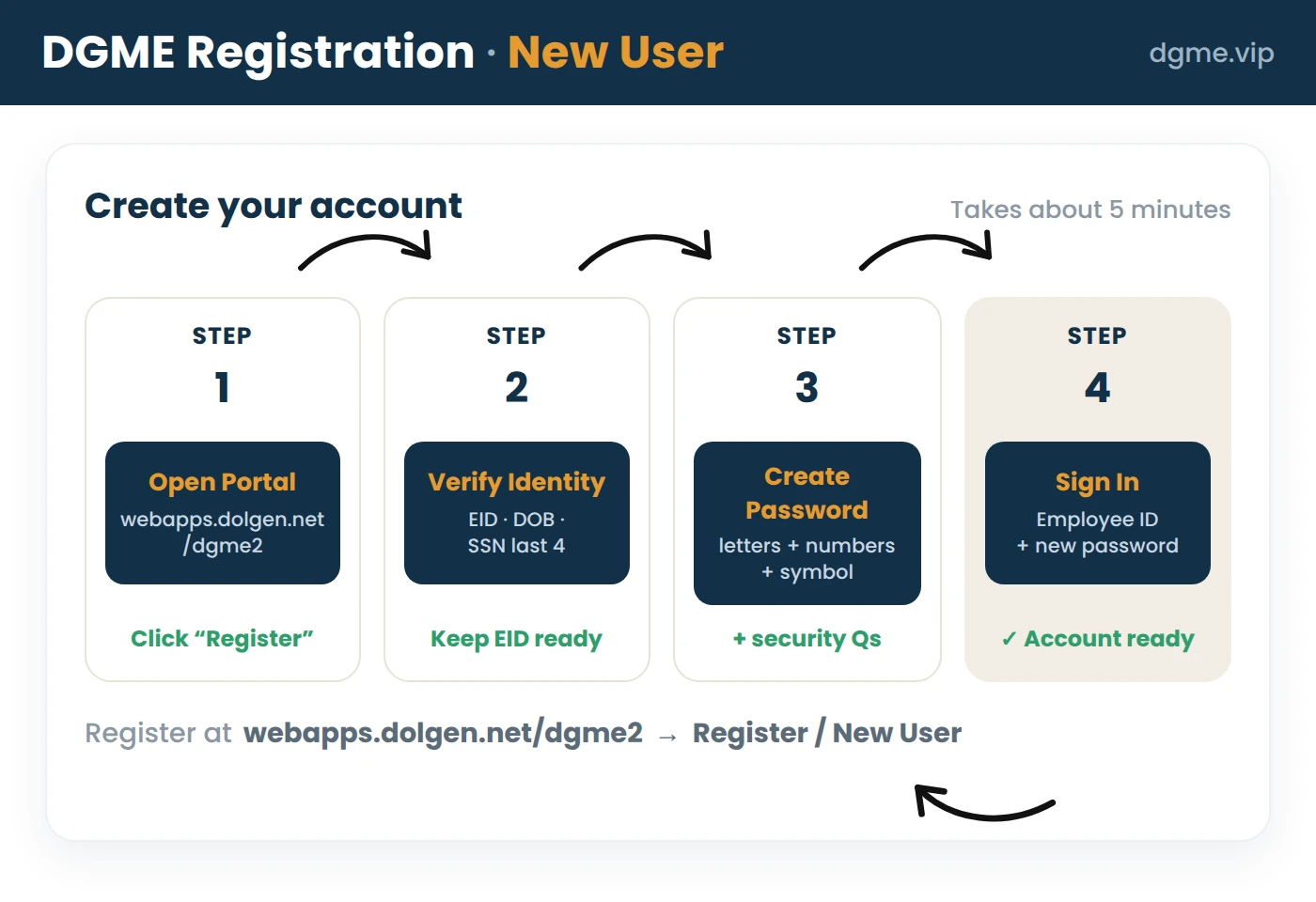
Go to webapps.dolgen.net/dgme2 and select the First Time User, Register Now option. The form asks for your Employee ID, legal first name, date of birth, and the last four digits of your SSN. Verify those details, create a strong password, and your DGME account is ready to use immediately.
What you need before you register
- Your Employee ID (EID). Dollar General assigns this when you are hired. Your manager or your onboarding paperwork has it, and the login page itself has an EID lookup option. Our Employee ID guide covers every way to find it.
- Your legal first name. The system matches against company records, so use your official name exactly as HR entered it, not a nickname.
- Your date of birth. You will select your birth month, birth year, and exact date.
- The last four digits of your Social Security Number. This is used only to verify your identity against your payroll record.
- A private device. You are entering personal details, so avoid shared or public computers where possible.
How to register your DGME account
- Open webapps.dolgen.net/dgme2, the official DGME portal. Type the address yourself or use our verified link. Never log in through ads in search results, because lookalike sites target Dollar General employees.
- On the login screen, select First Time User? Register Now. This takes you to the official new registration page on the dolgen.net system.
- Enter your Employee ID exactly as given, with no extra spaces.
- Enter your legal first name, select your birth month and birth year, then your exact date of birth, and type the last four digits of your SSN.
- Submit the form. Once your identity is verified against your payroll record, you will be prompted to create a password.
- Create a strong password with upper and lower case letters, at least one number, and one symbol. Do not reuse a password from any other account.
- Complete any remaining security prompts, then return to the login page and sign in with your EID and new password to confirm everything works.
Registration errors and how to fix them
| Error | Likely cause | Fix |
|---|---|---|
| Employee ID not recognized | Your payroll record is not in the system yet, or the ID was mistyped | Recheck the number, try adding leading zeros, and wait a day or two after your official start date. If it still fails, ask your store manager to confirm your EID and that onboarding is complete. |
| Identity details do not match | Name, date of birth, or SSN digits differ from what HR entered | Use your legal first name exactly as it appears in your hiring paperwork. If it keeps failing, ask HR to check your record for typos. |
| Password rejected | It does not meet complexity rules | Use a longer password with upper and lower case letters, a number, and a symbol. |
| Account already exists | An account was created during onboarding, or you registered before and forgot | Do not register again. Use the DGME password reset process to regain access. |
| Verification email or code missing | Email went to spam, or the system is delayed | Check spam and junk folders, wait a few minutes, then request a new code. If nothing arrives, confirm with HR that your email on file is correct. |
| Page will not load | Browser cache issues or temporary downtime | Clear your cache, try incognito mode or another browser like Chrome, or try again later. |
Registering on your phone
The registration form works in any mobile browser, and the same steps apply. Dollar General also offers a DGME mobile app, but complete your registration in a browser first, then use your new EID and password to sign in to the app. Always confirm you are on the official dolgen.net address before typing personal details on a phone, where fake sites are harder to spot.
After you register
Log in and take five minutes to set yourself up properly. Confirm your contact details are correct and learn where your work schedule lives inside the portal. One thing that surprises most new employees: your pay stubs and tax forms are not inside the main DGME portal. They sit on a separate system. Our pay stub guide and W2 guide show exactly where those live and how to log in there.