Your DGME schedule tells you when you work at Dollar General, but finding it confuses almost every new employee, because scheduling runs through Legion, a separate workforce system connected to DGME. This guide explains where your shifts actually live, how to check them from your phone, how to swap a shift or request time off, and what to do when your schedule shows up blank.
Sign in at webapps.dolgen.net/dgme2 and open the Schedule or Workforce section to see your shifts. Dollar General uses the Legion workforce system for scheduling, and your schedule also shows in the official Workvivo app on your phone. Managers usually post schedules 1 to 2 weeks in advance.
DGME vs Workvivo vs Legion: which one has your schedule?
This is the single most confusing part for Dollar General employees. These are three different things that share one login.
| System | What it is | What you use it for |
|---|---|---|
| DGME portal | The main employee website on dolgen.net | Login gateway, HR info, and the door to your schedule, pay and benefits |
| Workvivo | Dollar General’s official phone app (opens as DGme) | Company updates, announcements, and a quick view of your schedule |
| Legion | The scheduling engine, reached through the DGME portal | Full shift tools: view, time off, swaps and availability |
Simple rule: DGME is the front door, Workvivo is the phone app for updates, and Legion is where your shifts actually live. You reach Legion through the portal’s Schedule section. Same schedule, different doors.
How to check your DGME schedule
- Go to webapps.dolgen.net/dgme2 and sign in with your Employee ID and password.
- Open the Schedule or Workforce section from your dashboard.
- View your shifts by week or month. Each shift shows start time, end time and total hours.
- Use the arrows to see next week’s schedule once your manager publishes it.
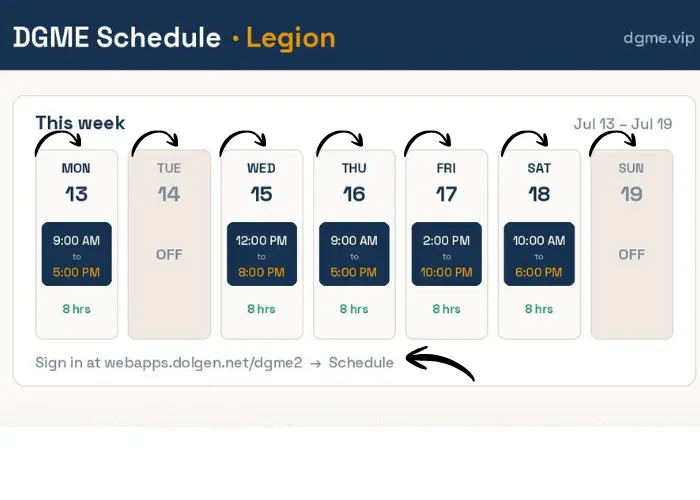
Checking your schedule on your phone
There is no standalone Dollar General scheduling app you download and set up on your own. On a phone you have two reliable ways to see your shifts.
Option 1: The Workvivo app (quick glance)
Workvivo is Dollar General’s official employee app, and your published schedule shows inside it.
- Install Workvivo from the App Store or Google Play.
- Sign in with your Employee ID and DGME password. It opens branded as DGme.
- Open the schedule area to view your upcoming shifts, and turn on notifications for updates.
Option 2: The DGME portal in your browser (full tools)
The same route as desktop, and it unlocks every Legion tool, not just the calendar.
- Open webapps.dolgen.net/dgme2 in Chrome or Safari.
- Sign in with your Employee ID and password.
- Open the Schedule or Workforce section to reach Legion, then request time off or swap shifts.
New employees sometimes cannot see their schedule right away. If nothing loads in your first week, your store may not have finished adding you to the system, so ask your manager to confirm your record is active.
When are Dollar General schedules posted?
Managers typically publish schedules 1 to 2 weeks in advance. If your upcoming week looks empty, the schedule probably has not been posted yet, it is rarely a technical problem. Check back the next day, and if it is still blank close to the new week, ask your manager directly when it will go up.
How to request time off
- Sign in and open the time off request area in the Schedule or Workforce section.
- Choose your dates and add a short note if needed.
- Submit. Your request will show as pending, approved or denied.
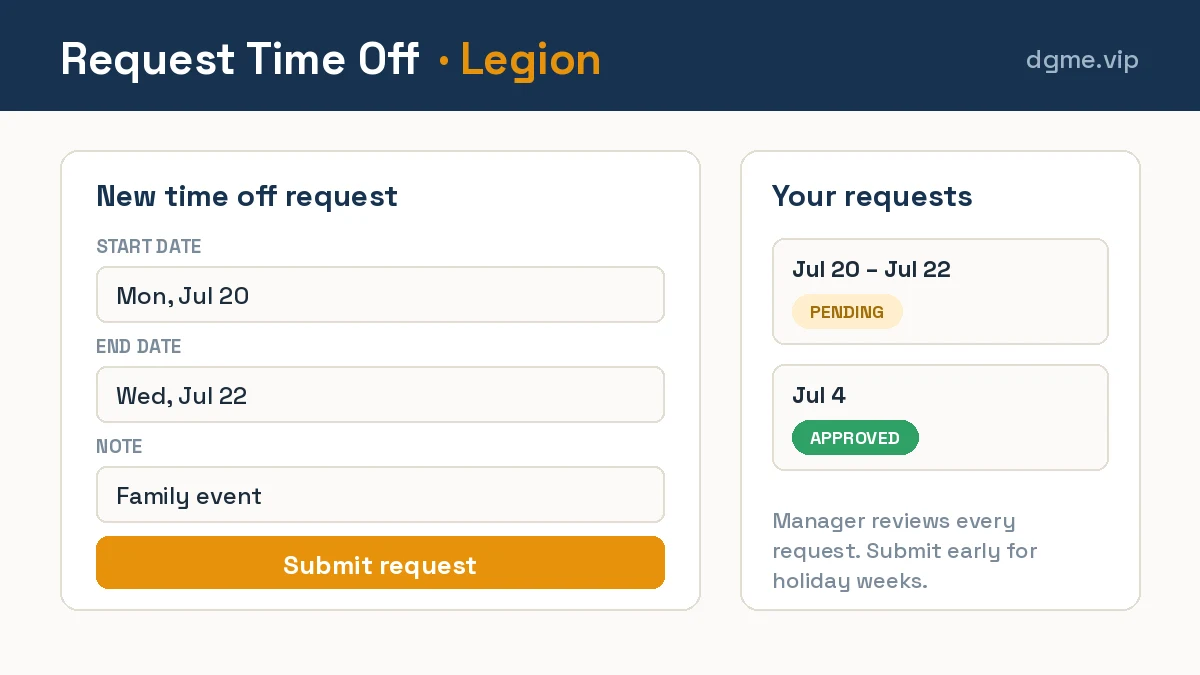
Submit requests as early as possible, especially around holidays. Managers plan labor weeks ahead, and early requests are far more likely to be approved than last minute ones.
How to swap a shift
At participating stores, you can trade shifts without chasing coworkers by phone:
- In the schedule section, select the shift you cannot work.
- Choose the shift swap or trade option.
- The swap goes through once your coworker accepts and your manager approves.
If you do not see a swap option, your store may handle trades manually. Talk to your manager, and never just skip a shift assuming a verbal swap counts.
Why your availability affects your hours
The hours you are offered each week depend heavily on the availability you set when you joined Dollar General. If your availability is very narrow, the system has fewer slots to schedule you into, which often means fewer hours. If you want more shifts, update your availability in the portal and tell your manager you are open to picking up extra or open shifts when coworkers call out.
DGME schedule problems and fixes
| Problem | What is usually going on | What to do |
|---|---|---|
| Schedule is blank | Manager has not published it yet | Check back tomorrow, then ask your manager directly |
| Shift changed without warning | Call outs or labor budget changes | Turn on Workvivo notifications so changes reach you quickly |
| Cannot see your schedule at all | New employees may not be in the system yet | Ask your manager to confirm your record; existing employees should reset their password |
| Shift shows in one place but not another | One system has not refreshed | Sign out of both, sign back in, and treat your manager’s confirmation as final |
| Sent to work but shift was cancelled | Late schedule change | Always recheck your schedule before traveling to work |